Guide
Downloading parts: combined PDF, ZIP or single part
Which download format fits when – and how saved instrumentations let you build a combined PDF that contains exactly the copies your rehearsal needs.
Notenarchiv offers several download routes for every piece, and at first glance they look interchangeable. They are not: printing folders for a rehearsal calls for something different than loading parts onto a tablet or sending a single file to a deputy.
Here is which format fits when – and how the combined PDF’s instrumentation feature works, which lets you decide per part how often it ends up in the file.
The four routes at a glance
| Format | Result | Best for |
|---|---|---|
| Combined PDF | one single PDF, bookmarks per part | printing, archiving, sending to the conductor |
| ZIP | one separate PDF per part | importing into a sheet music app, redistributing |
| Single part | exactly one file | getting your own part onto your tablet |
| forScore file (.4sc) | part including metadata | importing into forScore on the iPad |
Combined PDF: one file, ordered like a score
The combined PDF merges all parts of a piece into one file and creates a bookmark for each part. The order is neither random nor alphabetical: it follows your instrument setup – first by instrument group, then by the sort order within that group. Sort your instruments into sections once, and every combined PDF comes out in score order automatically.
One point that regularly prompts questions: the combined PDF only contains the parts you are allowed to see. As a member you get the parts for your own instruments, as a librarian or admin the complete set. A member with three instruments therefore receives a PDF with exactly those three parts – that is not a bug, it is the same rule that governs the part list.
Instrumentation: how many copies of each part?
When printing for a rehearsal, a single copy per part rarely helps. You have four first clarinets but only one bass – and the trumpets share a stand between two players.
That is exactly why the Combined PDF button is a split button: the main click delivers one copy each as before, while the arrow beside it opens the Copies per part menu.
There you choose:
- 1 copy each – the previous behaviour
- a saved instrumentation belonging to your ensemble
- Set numbers … – the dialog “Combined PDF: copies per part”
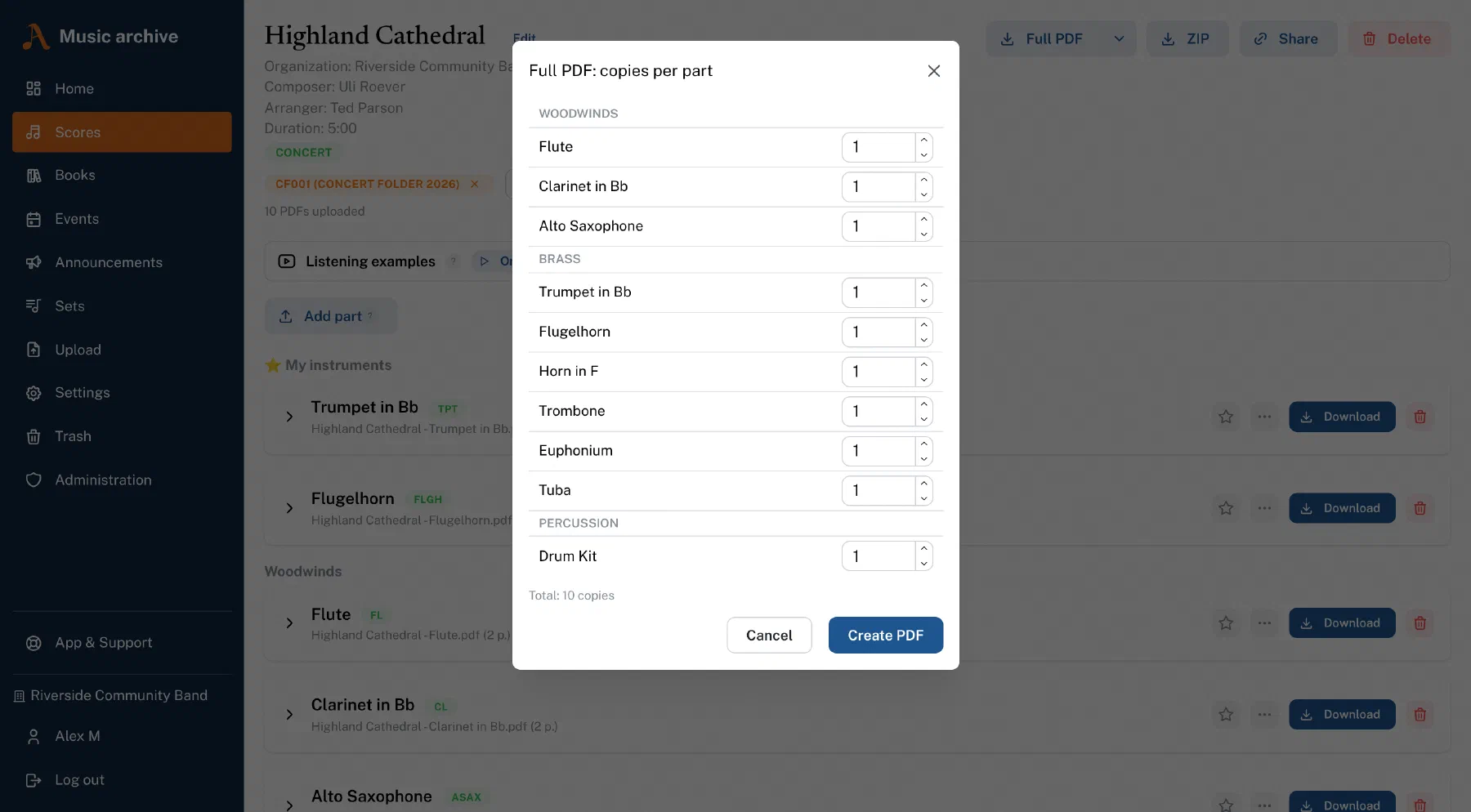
In the dialog you enter a number per instrument. The rules:
- 0 leaves the part out entirely – handy if you only need the woodwind.
- Multiple copies are placed directly after one another and carry descriptive bookmarks in the form
Trumpet 1 (1/2)andTrumpet 1 (2/2). Nothing needs sorting after printing. - Up to 20 copies per part are possible – the limit prevents accidentally enormous files.
- The dialog continuously shows the total number of copies at the bottom, so you can see what you are about to generate.
Save instrumentations instead of retyping them
You do not want to retype an instrumentation for every piece. Under Settings → Combined PDF configurations you create named configurations, for example “Full band”, “Beginners’ band” or “Concert 2026”. One of them can be preselected as the default so it sits at the top of the menu.
The configurations belong to the whole ensemble rather than to one person – one librarian maintains them and everyone with download rights benefits.
One detail that saves a lot of trouble later: only the deviations from the normal case are stored. An instrument you have not entered anything for appears once in the PDF. If you add a new instrument later – a third trombone, say – it automatically shows up in every existing configuration with one copy instead of quietly going missing.
ZIP: when every part should stay its own file
The ZIP archive contains every part as its own PDF file. That is the right route when the files are processed further: importing into a sheet music app, filing them in the ensemble’s folder, handing individual parts to different people.
The same thing exists one level up for an entire music book: in the books view you pick an instrument at the top and use All pieces as ZIP to download every part for that instrument from the complete book. The file names carry the book code and number, so they sort into the order of the book everywhere. That is how a new member’s folder is assembled in a few minutes.
And what about forScore?
For iPad users, parts are additionally available as a forScore file (.4sc) – besides the PDF it carries title, composer and category, so nothing needs filling in inside forScore. How to get several parts into forScore at once is covered in the guide Importing several scores into forScore at once.
In short
- Printing for a rehearsal? Combined PDF with a saved instrumentation.
- Only one section? Combined PDF with every other instrument set to 0.
- Processing the files further? ZIP.
- Equipping a new member? Books view, pick the instrument, download everything as a ZIP.
- iPad with forScore? .4sc instead of PDF.